






IPHONE SETUP
| These instructions will help you set up your OCCC Outlook 365 email account. |
| From your iPhone, locate the Settings icon and tap on it. |
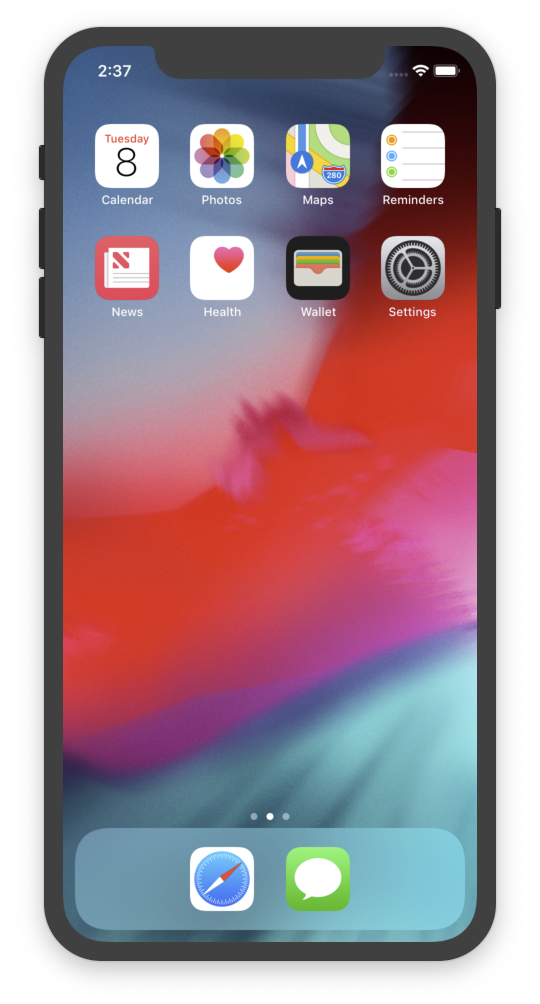 |
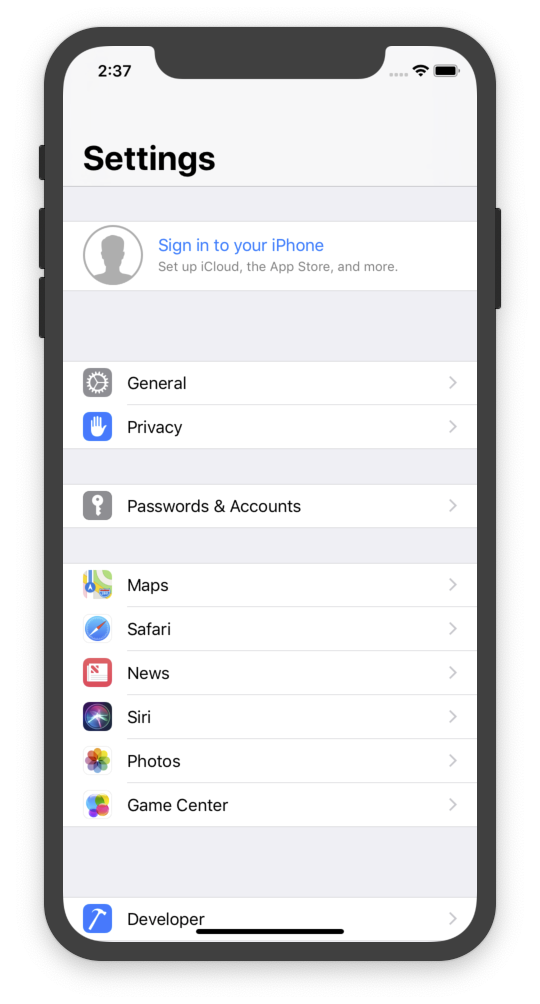
| Scroll until you see the Mail, Contacts, Calendars option and tap on it. |
 |
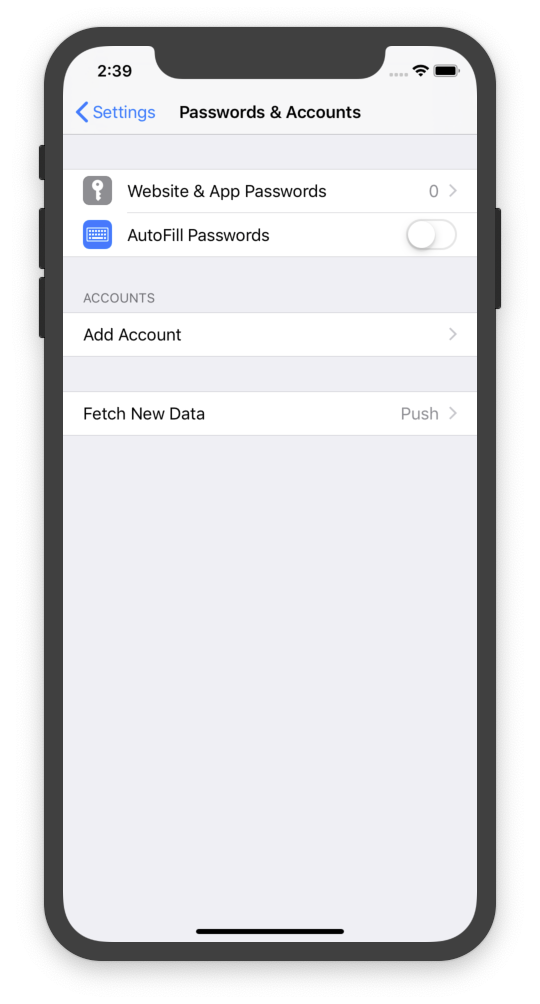
| Tap on Add Account... |
 |
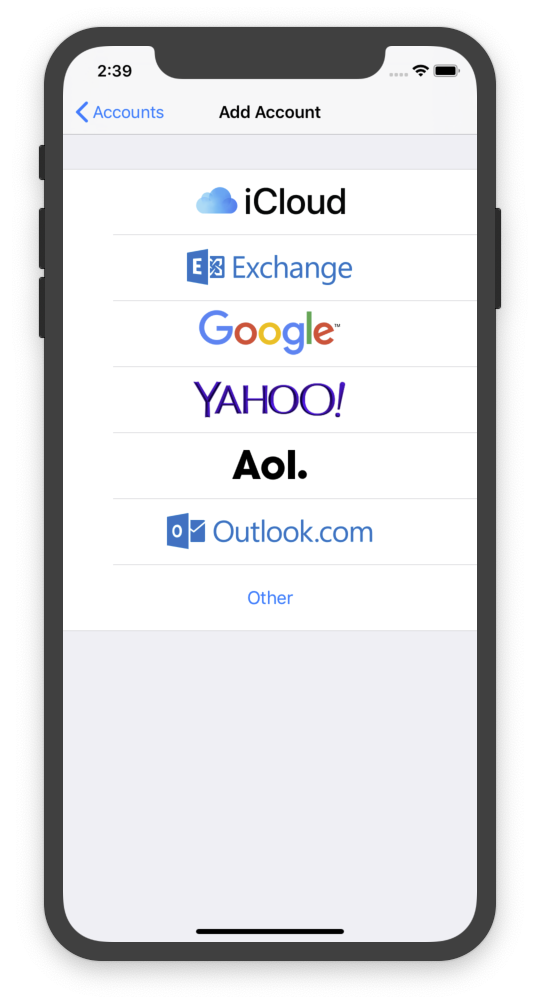
| Find Outlook.com; tap on it. |
 |
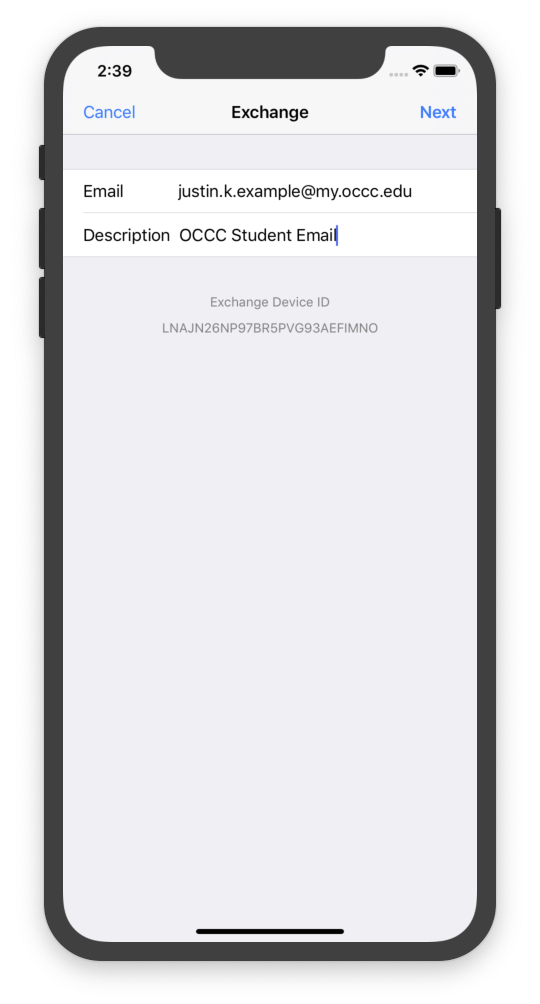
| Fill out the Email, Password, and Description fields. Your email address is typically firstname.middleinitial.lastname@my.occc.edu (or just @occc.edu for faculty and staff). |
 |
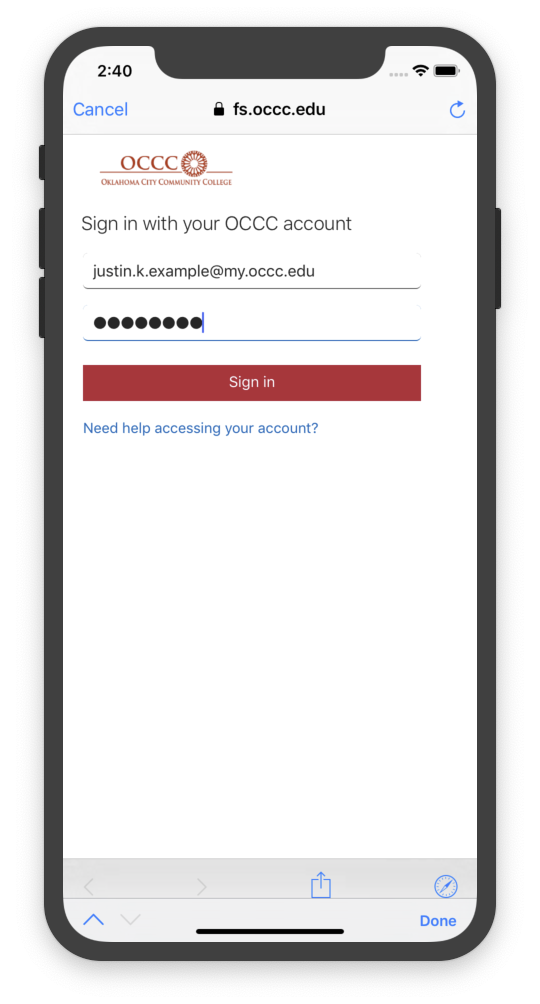
| If the following screen displays, it most likely means that you have made a mistake entering either your email address or password. Contact the help desk at 405.682.7777 for assistance. But you will have to tap on the Cancel button to restart. Reminder: If this is the first time you are accessing your new email account, your password will initially be set to the last 6 digits of your social security number. |
 |
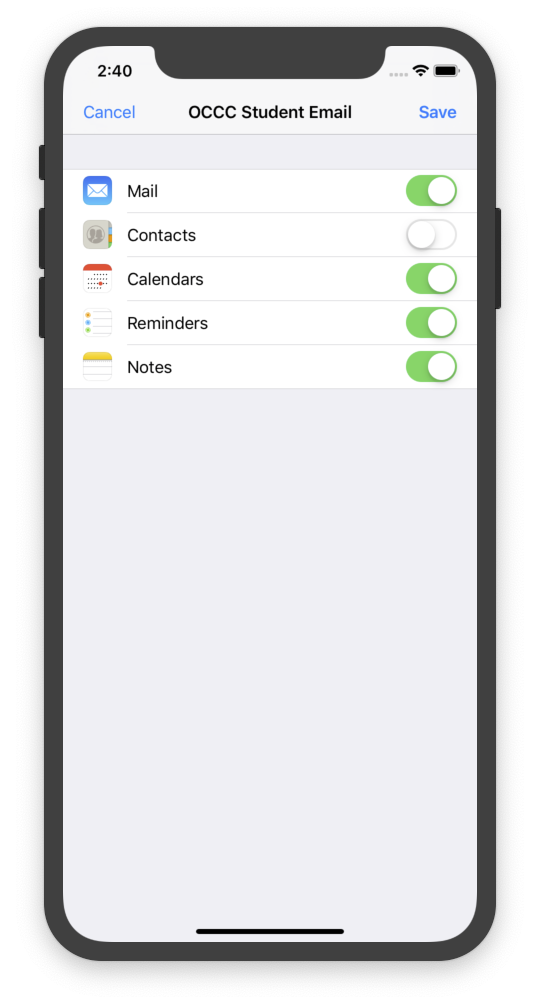
| The next screen will allow you to turn on or off features built into your account. I am leaving them all turned on, so I then tap on the Save icon. |
 |
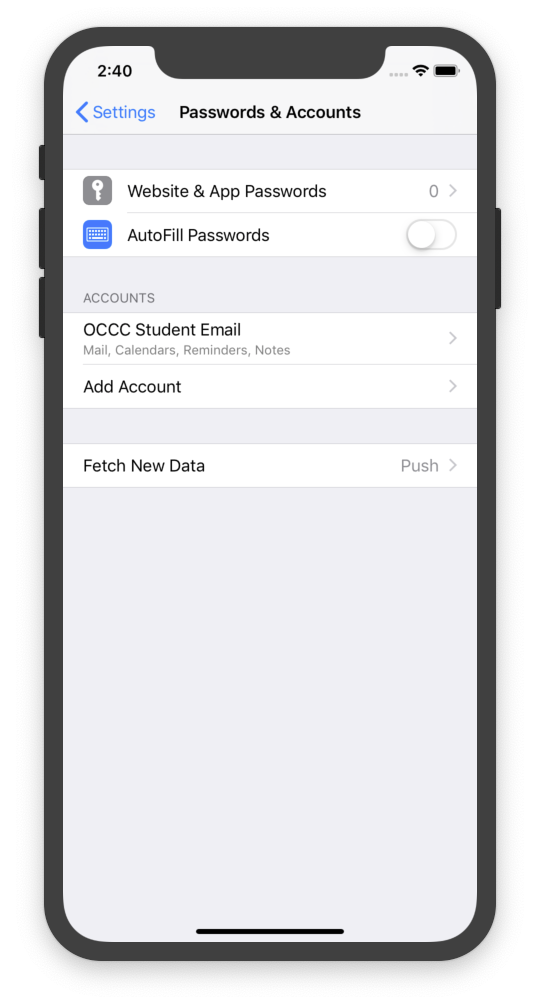
| The email account you just configured should now show up in the list and should be available on your iPhone. |
 |